
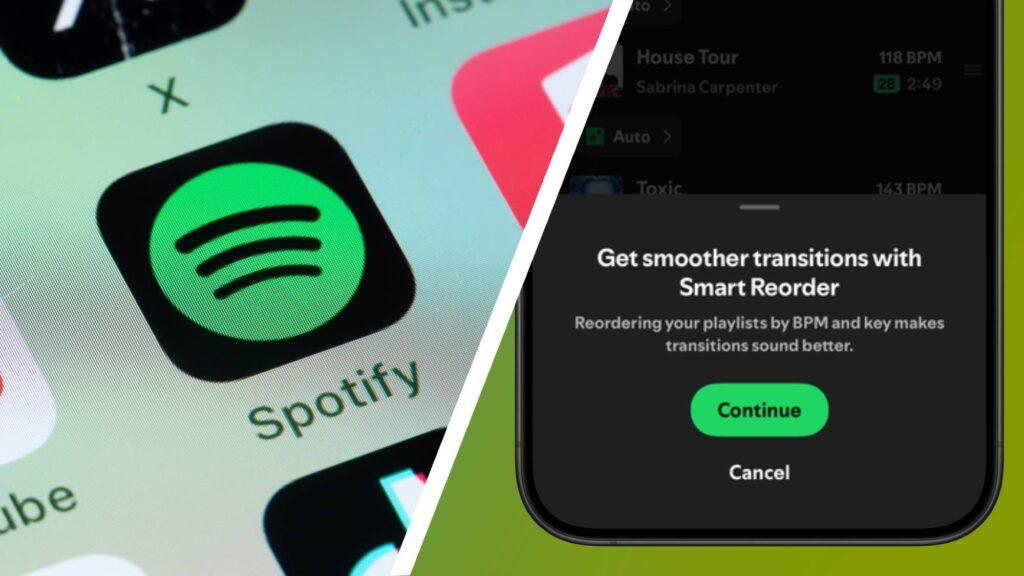
- Spotify has released an update for its mixed playlist feature
- Smart Reorder automatically rearranges songs based on their BPM and key
- It makes it easier and less time-consuming to create custom transitions between songs.
When Spotify launched its mix playlist feature last year, I was taken with how it immediately puts you in the DJ’s shoes, and now mixing playlists on Spotify just got easier with Smart Reorder, which is rolling out to Premium subscribers.
Creating a mix playlist is a great way to get creative with your personal playlists. It’s all fun and games, until you realize how much work is involved. Rearranging the order of songs so that each BPM or key matches the next is tedious work, but it’s the best way to ensure seamless transitions. Smart Reorder eliminates that task.
It’s also very easy to enable, which is an added bonus. When you create a mixed playlist or enable Mix on a standard playlist, all you have to do is tap the “Edit” button which will load the playlist editing page.
At the bottom you will see the new Smart Reorder tool. Tap that and it will rearrange your playlist based on BPM and key, eliminating the dirty work.
Since launching the Mix feature last year, Spotify claims that “premium users around the world have streamed more than 220 million hours of their Mix playlists,” proving it to be one of the streaming platform’s most-rated music listening features. It arrived shortly after Apple Music introduced its own AutoMix tool, which uses AI to match beats, but Spotify’s version gives you full control of DJ decks.
I quite enjoyed Apple’s approach to this, but then Spotify totally stole the show and I’ve created numerous mixed playlists since. Now it’s a whole new game with Smart Reorder and it’s already a huge time saver.
Being a DJ is now more fluid
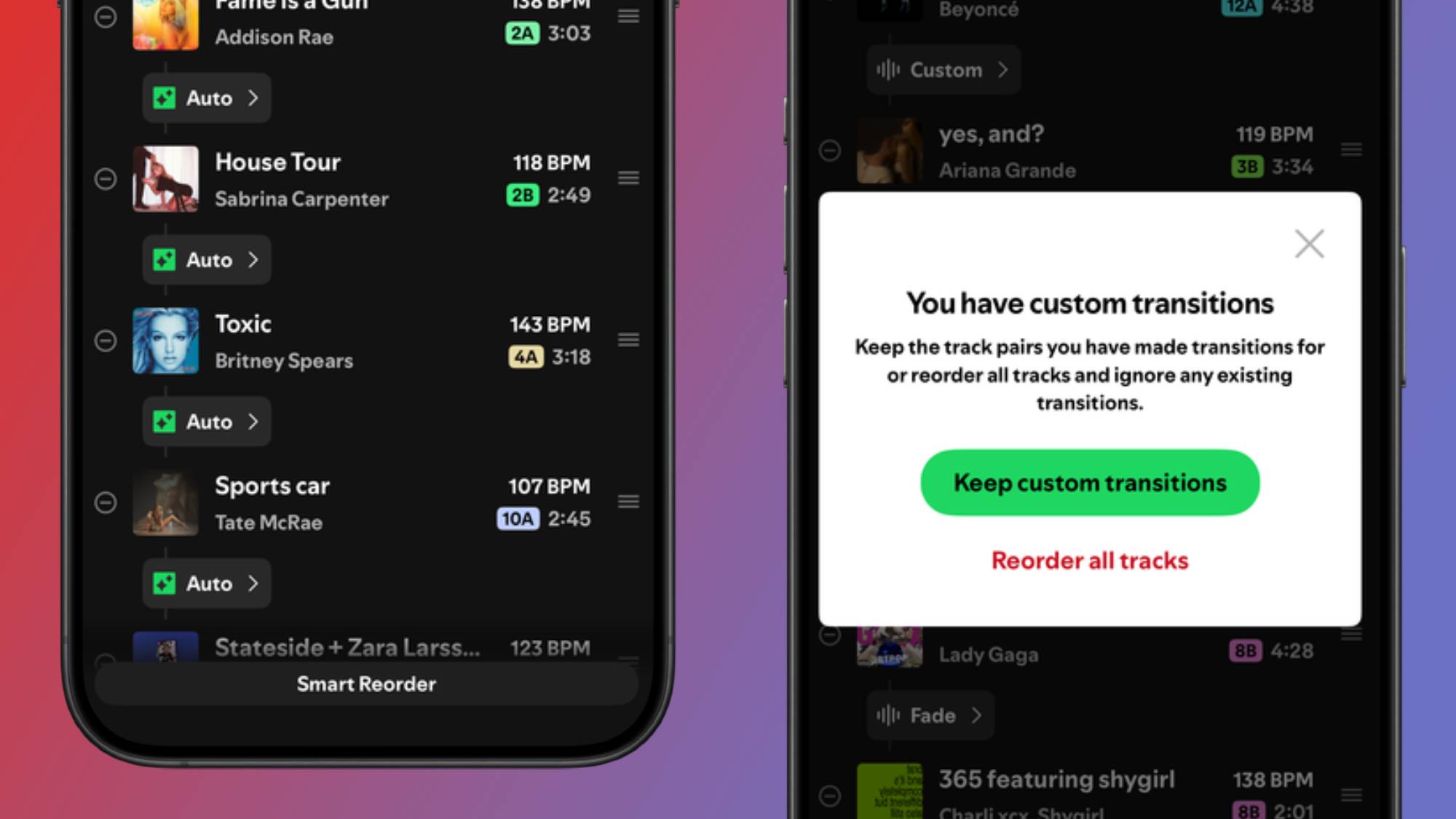
The best thing about Smart Reorder is that it works well with new mixed playlists, as well as existing playlists that you’ve already manually reordered and shuffled. If you’re new to mixed playlists and find the creative and reordering side of things a little daunting, Smart Reorder is a good place to start.
You don’t have to think too much about it. The best advice I would give would be to just add a bunch of songs to a playlist just to create it, don’t worry about the order. Once you have a solid foundation for a playlist, that’s when you can enable Smart Reorder so that your song selections follow each other seamlessly and their BPMs and keys match. You can then dive into each individual transition to edit your combinations.
If you already have a playlist that you’ve mixed and rearranged yourself, it works the same. But what about your custom transitions? Don’t worry, they remain intact.
When you enable Smart Reorder on a mixed playlist with custom transitions, it gives you the option to keep them in their order and will only reorder songs with “automatic” transitions, meaning all your hard work will stay in place. However, if you want to completely revamp your mixed playlist with a new song order, that option is there too and could give you the foundation to create better transitions.
Follow TechRadar on Google News and add us as a preferred source to receive news, reviews and opinions from our experts in your feeds. Be sure to click the Follow button!
And of course, you can also follow TechRadar on YouTube and tiktok for news, reviews, unboxings in video form and receive regular updates from us on WhatsApp also.