
Home Screen Heroes
This is part of a regular series of articles exploring the apps we couldn’t live without. Read them all here.
If you’re a writer of any kind (blogger, copywriter, aspiring novelist, or any other type of wordsmith), you know how important your writing tools can be. In the analog world I only write seriously with a very nice pen and creamy paper. And in the digital sphere, I write exclusively in Ulysses.
What is Ulysses and how much does it cost?
Ulysses lets you get words out of your brain and onto the page exceptionally quickly and easily, and features a distraction-free interface that hides everything you don’t need so you can focus on your words.
It’s incredibly fast. And it allows you to manage even very large projects. I’m currently writing another book with it and use it daily for business writing, news reporting, and little bits like writing author bios, questions for events I host, and recording things I want to remember later.
It’s great on the Mac and on an iPad with an external keyboard, and there’s also an iPhone version so you can access, edit, and scribble ideas on the go.
Ulysses isn’t free, but it’s pretty cheap: $39.99/£39.99 (around AU$60) for an annual plan or £5.99/$5.99 per month (around AU$9 per month). Students can also purchase it for $10.99/£9.99 (or around AU$17) for six months currently.
Why this is my home screen hero
Ulysses is a unique writing and publishing anywhere app. It uses Markdown, a form of plain text with simple shortcuts to quickly format, link, and structure documents. Markdown was also designed with speed in mind.
Because the most common shortcuts are keyboard-based (one pound symbol to turn text into an H1 heading, two for H2, Command-B for bold, etc.), it means I’m not constantly moving towards the mouse, which makes my RSI-addled hands very happy.
Because Markdown is plain text, it consumes very little of your system, which is why Ulysses is incredibly fast even on older Macs. Searching even large folders is instant, and those plain text files can be opened in virtually any text application, as well as from Ulysses.
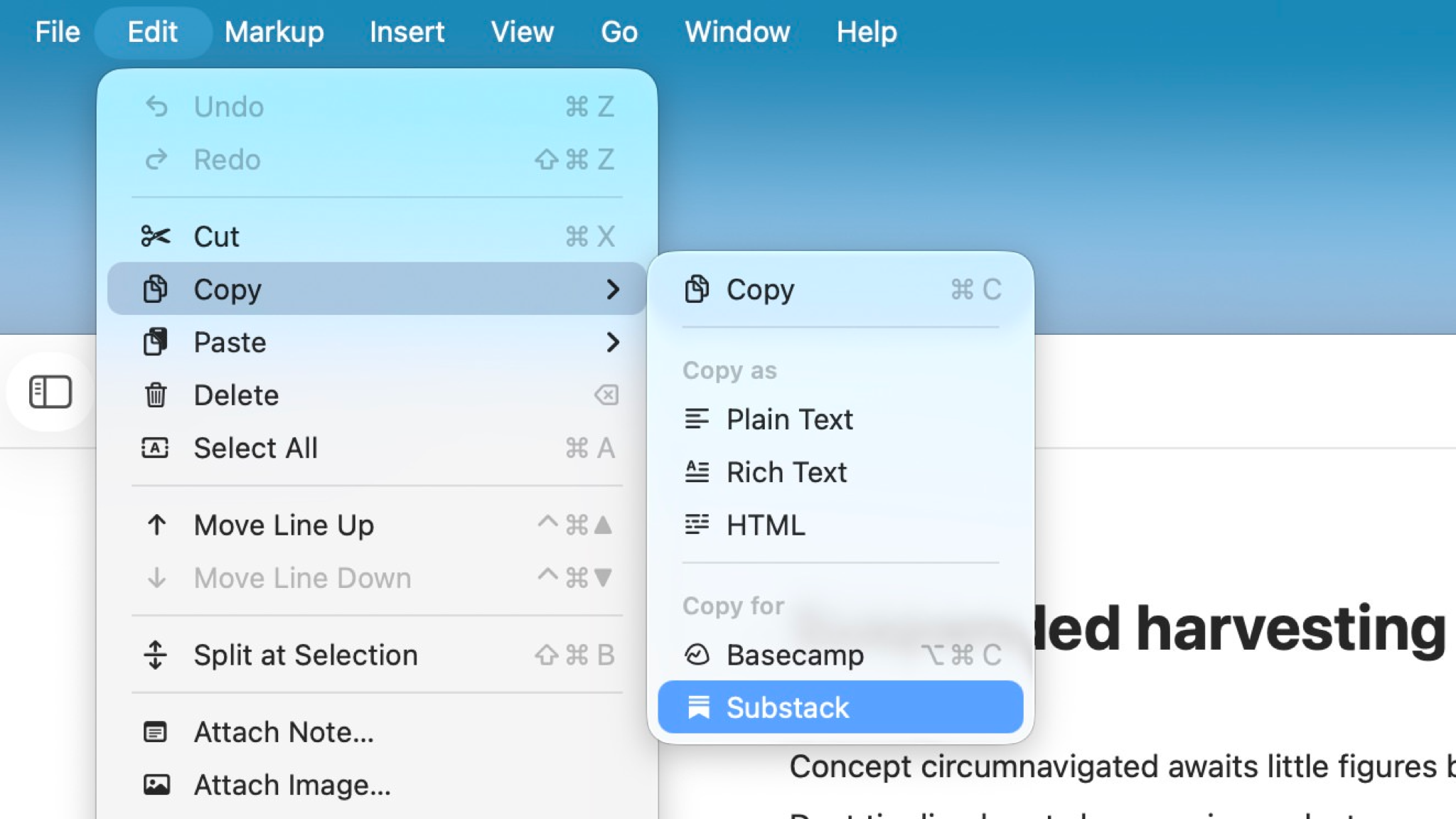
Once you’ve written your words, you can export them to virtually anything with a couple of clicks: to blogging and newsletter platforms like WordPress, Ghost, Substack, and Medium; to the clipboard as plain or rich text; to Microsoft DOCX format; in plain text, rich text, or Markdown format; in HTML format; as PDF; or as ePub.
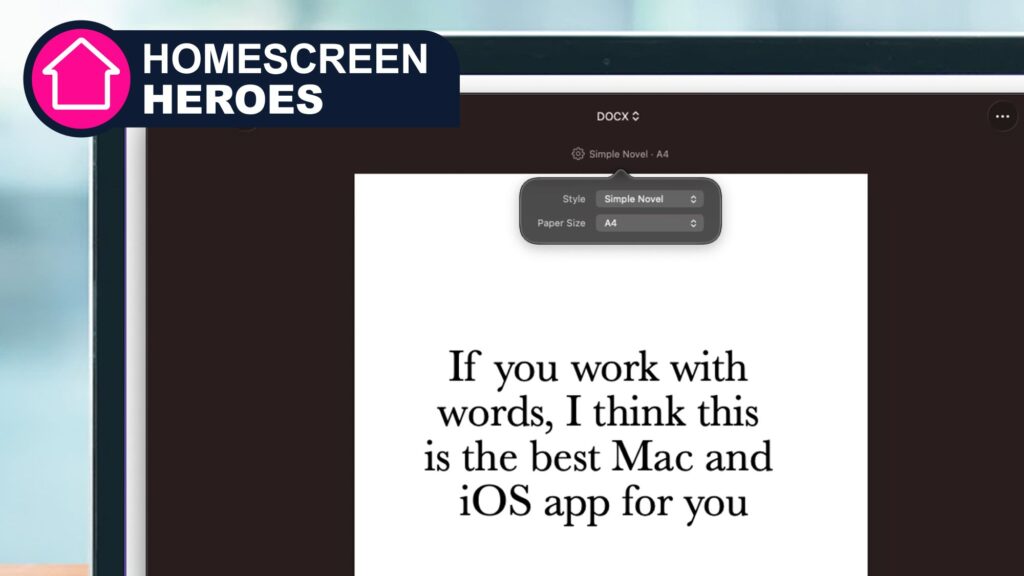
There are many templates you can use to format those types of files, so for example, if I’m exporting to DOCX, I can go with a simple, straightforward template; a film script; a newspaper-style column layout and much more. And there are many themes you can use to customize the look of Ulysses. You can also modify the interface for light mode, dark mode, or a combination of both: I like having the dark sidebars and the light editing window.
How to use Ulysses
Three Alternative Writing Apps for Serious Topics
Scribe (Mac/PC/iOS)
I’ve used Scrivener for some really big projects, including self-publishing a novel. I think it’s overkill for everyday writing, but it’s a powerful app for book production.
Mountains 2 (Mac)
This is a wonderful and very attractive Mac app for writing screenplays and screenplays, and it was created by big fish and Frankenweenie The writer Juan Agosto.
AI Writer (Mac/PC/iOS)
Like Ulysses, IA Writer is a distraction-free, Markdown-based writing environment. It’s even more minimalist than Ulysses and provides visual writing and style feedback.
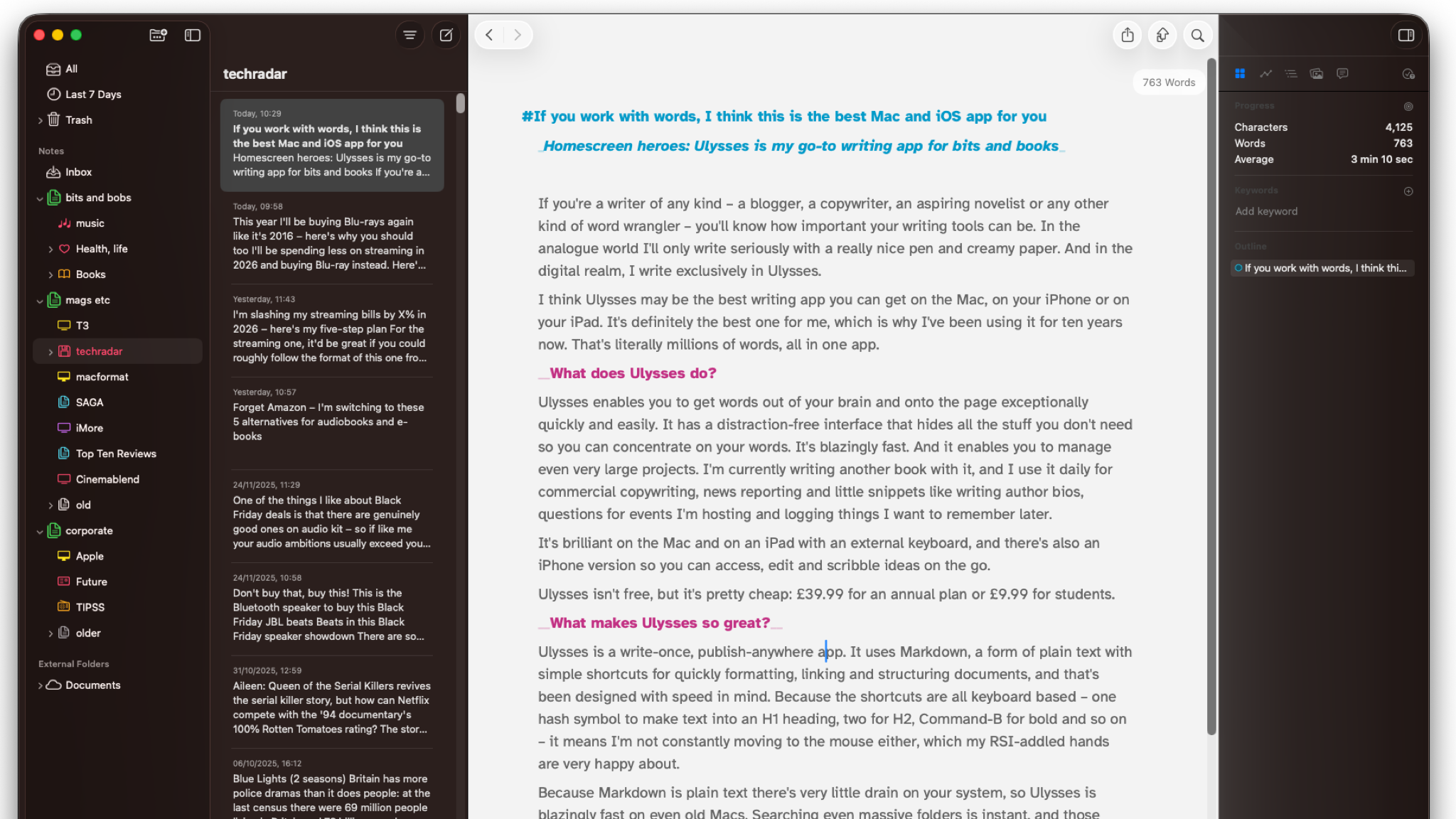
The main interface consists of a main editing window and three sidebars that you can hide or show. The left sidebar is where I organize my projects and folders; so for example I write this in my ‘Mags Etc > TechRadar’ folder. It’s a small thing, I know, but I love being able to customize the sidebar icons and colors.
You can also use folders to split projects. For example, if you’re working on a book, you might have separate folders to store your research, your characters’ backstories and inspirations, or images of possible locations, in addition to the actual chapters you’re writing. You can also link to external folders on your device or in the cloud.
To the right of the first sidebar are previews of all the other documents in the current folder, so I can see (and sort or filter) all my other recent TechRadar articles. The main window shows my words and current word count, because that’s all I need for most writing jobs.
And the sidebar on the right shows me more statistics and can be changed to show progress toward a word count or deadline, the outline of my current document, the images I’m using in the document, or the links I’ve added.
Why I recommend Ulysses
To borrow Apple’s slogan: “it just works” (although a little slow when it comes to syncing on my iPad and iPhone).
I’ve tried many writing apps, since the days of WordStar and WordPerfect, and Ulysses is the one that seems made especially for me. It’s not too simple, not too complex, not too demanding, and it’s not likely to destroy tens of thousands of words and make them unrecoverable, unlike a certain app that rhymes with ‘Nicrosoft Bird’.
The only real downside to using Ulysses for work documents is that part of my job involves dealing with comments and tracked changes, and Ulysses isn’t designed to do that with third parties: you can comment on your documents and projects easily enough, but I haven’t found a way to incorporate, say, a heavily modified Word document from a client.
So I still have a copy of Word lying around, but Ulysses is the app I use 99% of the time for fiction, nonfiction, commercial, and corporate work.
Follow TechRadar on Google News and add us as a preferred source to receive news, reviews and opinions from our experts in your feeds. Be sure to click the Follow button!
And of course you can also follow TechRadar on TikTok for news, reviews, unboxings in video form and receive regular updates from us on WhatsApp also.