- The latest Windows 11 preview has an Ask Copilot feature
- This effectively replaces the search box on the taskbar.
- Broadly speaking, it achieves the same function, but powered by AI, although the existing search function is present behind the scenes.
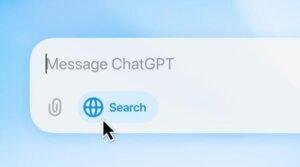
Windows 11 has a new preview build and this one marks the start of a big move with Copilot, putting a more complete incarnation of AI in the taskbar, if you want it there. In the blog post introducing build 26220.7051 in the Beta and Dev channels, Microsoft announced the option to have a new ‘Ask Copilot’ feature in the taskbar.
The company already revealed this functionality as part of its broader push to beef up AI features in Windows 11, and that’s outside of Copilot+ PCs too, with the idea being that Ask Copilot will replace the traditional Windows search box.
You still type in that taskbar box, in the same way as the current search, except this time Copilot guides the responses and can show relevant files or applications on your PC, or possible queries you want to ask the AI (which will be activated in the Copilot app, as you would expect). You can also click to switch to a classic Windows 11 search (which will open the Start menu to run that query, the same way the taskbar search box works now, except it’s an extra click away).
In addition to this, the Ask Copilot box has icons for one-click access to Copilot Vision and also voice commands for the AI.
It’s also worth noting that elsewhere in this new preview, there’s a clever introduction to an audio feature for watching movies with a friend on the same laptop: audio sharing via wireless headphones (with some drawbacks, unfortunately).
Analysis: Microsoft’s desire to emphasize that Copilot is not meddling
The idea is that Copilot will replace Windows 11’s search box, except that the latter functionality is still present: it’s simply buried one click away from the desktop (in the Start menu, as mentioned).
For those who dread the prospect of having Ask Copilot in the taskbar, the good news is that this is an optional feature, so if you don’t want it, you won’t get it.
Microsoft makes it clear that the Ask Co-Pilot checkbox is disabled by default, so you have to actively go into Settings and enable it to get this experience (in Settings > Personalization > Taskbar > Ask Copilot). And also remember that it’s only in testing for now, so you won’t see this unless you’re running said preview build of Windows 11.
Additionally, Microsoft emphasizes, as it did when this feature was first introduced, that Ask Copilot doesn’t use anything other than what Windows Search already accesses. In other words, there are no changes to the privacy of the contents of your PC, nor does AI get into your personal files or data, as some of the more paranoid among you might imagine.
Microsoft tells us: “Ask Copilot uses existing Windows APIs to return applications, files, and settings, just like Windows Search, and does not give Copilot access to your personal content.”
So even if it is activated, this is no different from Windows 11 search in its scope and monitoring. However, it obviously promotes the Copilot app in terms of it being probably called upon for some queries made through the box. (And also the Copilot Vision and Voice icons will drive more use of those abilities; not that there’s necessarily anything wrong with this, as they’re cool tricks, although Vision does come with some privacy warnings.)
While Ask Copilot remains purely optional for now, it’s not hard to imagine that in the future, this will be a central and legal element of the taskbar; in fact, probably a key part of the entire next-gen Windows interface along with the Copilot app (if Microsoft has its way, anyway, and maybe Mico too).

The best mini PCs for all budgets
Follow TechRadar on Google News and add us as a preferred source to receive news, reviews and opinions from our experts in your feeds. Be sure to click the Follow button!
And of course you can also follow TechRadar on TikTok for news, reviews, unboxings in video form and receive regular updates from us on WhatsApp also.