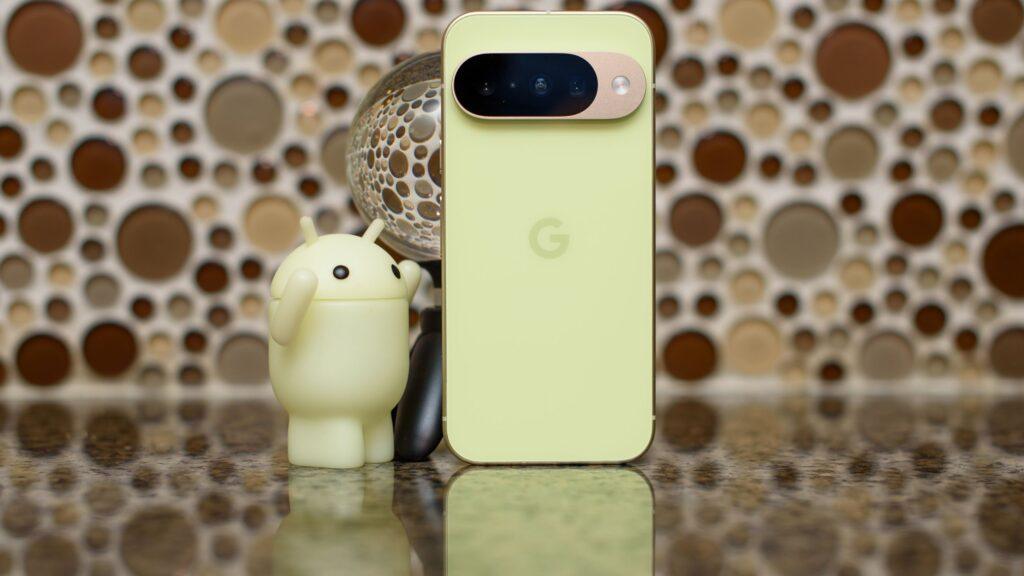
- Android 17 is causing touchscreen issues for several Pixel owners
- Google is aware of the problem and has suggested some solutions, but they apparently haven’t worked for most people.
- Another solution suggested on Reddit seems to work better, but still not for everyone
Android 17 hasn’t gotten off to the best start, with some early updaters reporting issues with Wi-Fi and 5G connections, and now another bug has emerged, this time affecting the touchscreen.
According to several Reddit users (via Android Authority), updating to Android 17 has caused touchscreen issues, including the screen scrolling in the opposite direction they swiped, completely ignoring touches, and dead zones where the screen is unresponsive.
It’s hard to say how widespread this issue is, but there are several Reddit threads about it and it’s also been submitted to Google’s issue tracker. So if you haven’t updated to Android 17 yet, you might want to wait, although it looks like at least the Google Pixel 6 series might not be affected.

The good news is that Google is aware of the bug, as it was not only submitted to the company’s issue tracker, but an official Google account responded to one of the Reddit threads, suggesting a couple of possible solutions.
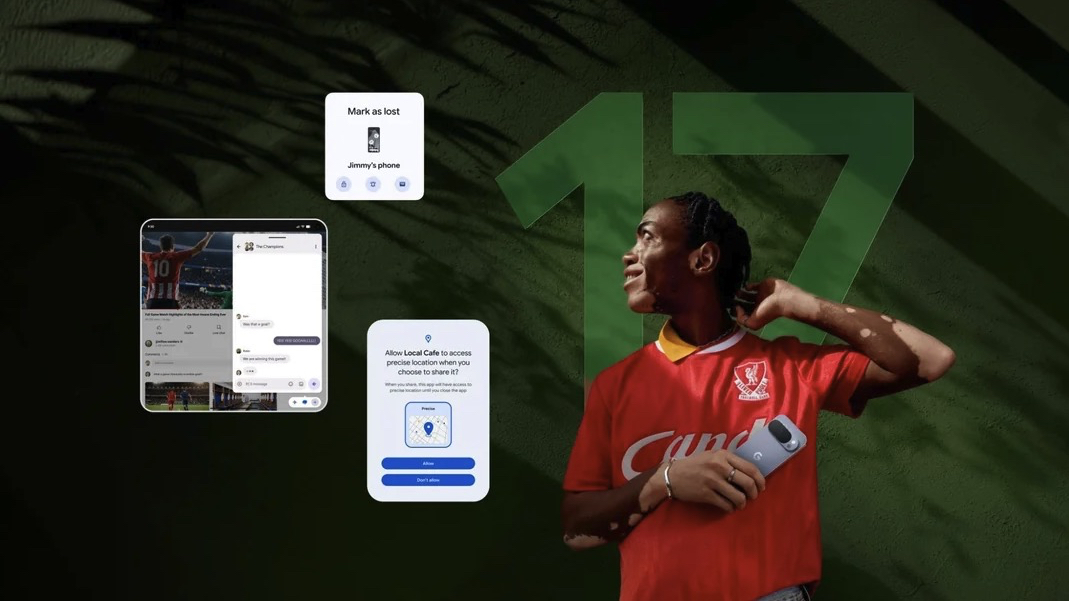
Three possible solutions
These included clearing the cache, going to Settings > Apps > See all apps > Pixel Launcher app > Storage and cache > Clear cache. If that doesn’t work, the other suggestion was to start your phone in safe mode and see if that fixes the problem.
To do this on a Pixel 6 or later that is currently turned on, hold down the power button for a few seconds and then long press the ‘Power off’ or ‘Restart’ optionfollowed by tapping ‘OK’. If your phone is off, you instead want to press the power button and then when the animation starts, press and hold the volume down button until the animation ends.
In any case, your phone will say “safe mode” at the bottom of the screen once it starts up, and if this fixes the problem, then the problem is a third-party app, so you should temporarily delete them one by one, starting with the most recent ones, until you find the culprit.
But while that’s Google’s official advice, it doesn’t seem to have worked for many people. What seems to have worked a little more widely is the suggestion to disable the triple tap magnification shortcut.
To do this, go to Settings > Accessibility > Magnificationthen turn off “Magnification shortcut” or tap it and change the magnification option to something other than “Triple-tap screen.” However, it is unclear whether this has worked for everyone or not.
So if none of the above solves the problem, unfortunately you’ll probably have to wait for Google to implement a proper fix. Let’s hope it doesn’t take long.
Follow TechRadar on Google News and add us as a preferred source to receive news, reviews and opinions from our experts in your feeds. Be sure to click the Follow button!
And of course you can also follow TechRadar on TikTok for news, reviews, unboxings in video form and receive regular updates from us on WhatsApp also.