The Google Pixel launch in March included a ton of new features for its smartphones. One feature that wasn’t mentioned is a new Pixel Desktop mode when you connect your phone to an external display.
However, the idea of connecting a smartphone to a monitor to instantly transform the interface into a desktop-like experience is nothing new. Samsung phones and tablets have had DeX for years. Motorola phones offer Smart Connect, which turns even your low-end phones into a desktop experience.

It’s surprisingly basic, but in a good way.
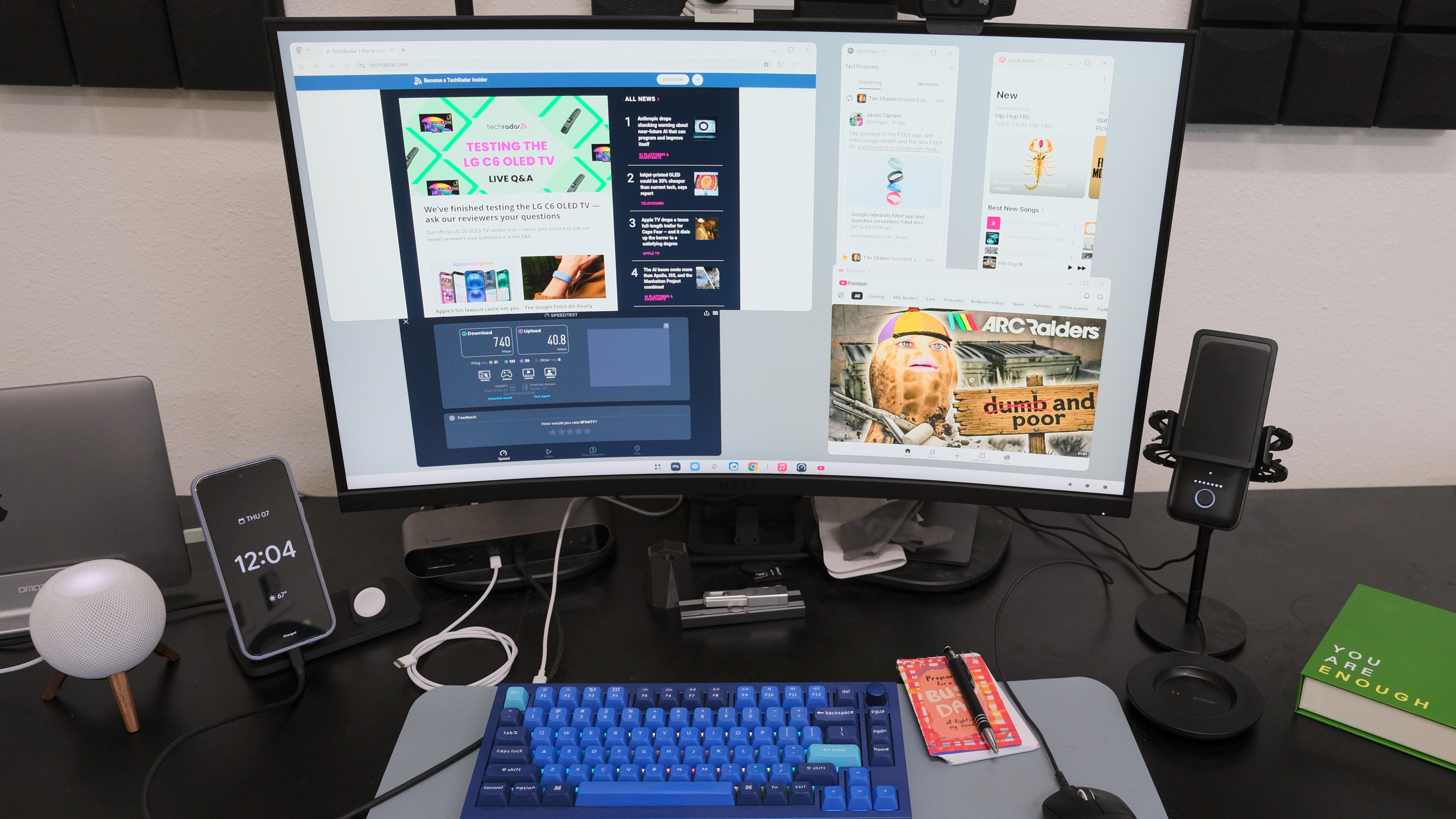
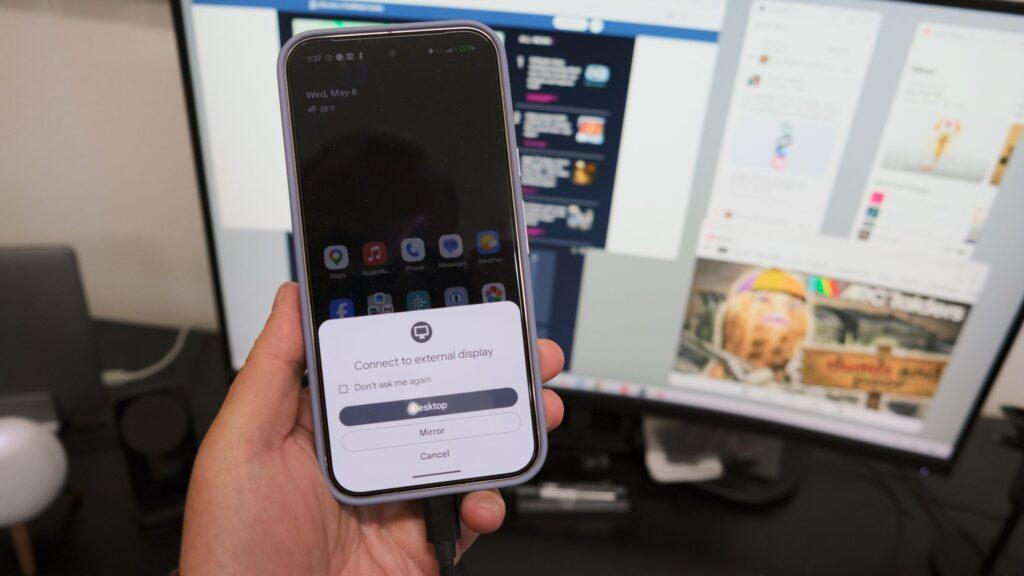
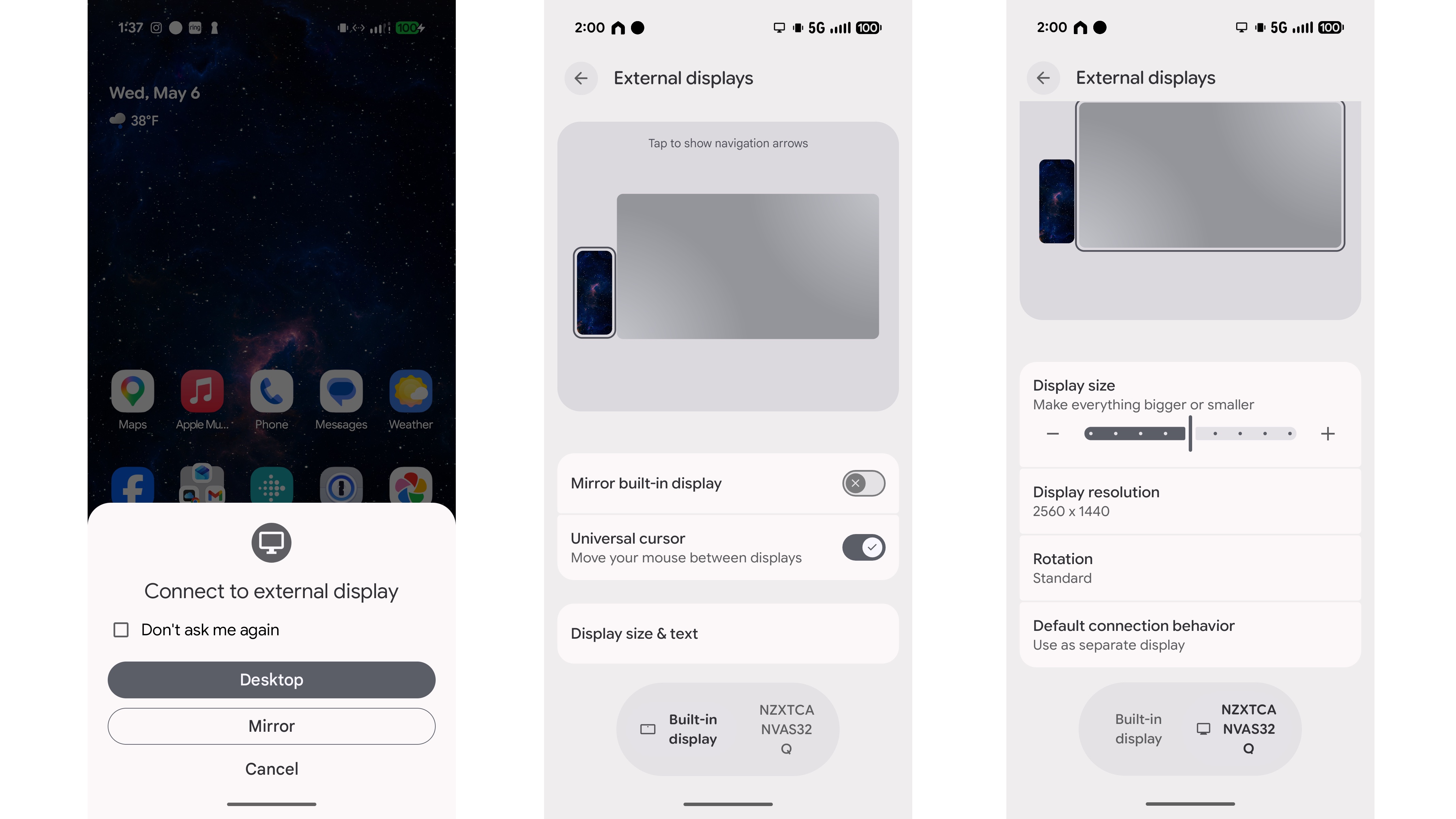
The first time I connected my Pixel 10 Pro XL to the same Thunderbolt dock I normally use with my MacBook Pro, I was prompted to connect to an external display. I checked the box next to “Don’t ask me again” and tapped the Desktop button. A few seconds later, my screen flickered and I was greeted with a nondescript desktop, with no images, app icons or shortcuts. My keyboard connected instantly and worked without issue, although I did have to pair my mouse with the Pixel.
At the bottom of the screen is the taskbar, which uses the same apps I put there on my Pixel. On the right are three navigation buttons that used to be the standard way to navigate on Android before it became gesture-only. That’s all. It reminds me a lot of the early days of ChromeOS or using one of the first beta versions of Android on a tablet.
I then started clicking on app icons and instead of seeing miniaturized phone-like apps on the screen, to my surprise, I saw what looked like full desktop apps open. Chrome is probably the best example, as it looks a lot like a desktop browser, with a row of tabs at the top of the window; the same tabs I had almost forgotten I had open on my Pixel.
Actually, all the apps I have been using for the past few days are nothing more than enhanced apps for tablets. Only, instead of being limited to specific window sizes or even a column similar to the size of a phone app, I have complete freedom to resize each window to whatever shape or format I want. You can have up to five apps open at once on the external display, plus another running on your Pixel phone, for a total of six apps.
When you open a new app on the desktop and you’re at the limit, the app that’s been idle the longest closes.
Everything you need to use the Pixel’s Desktop mode
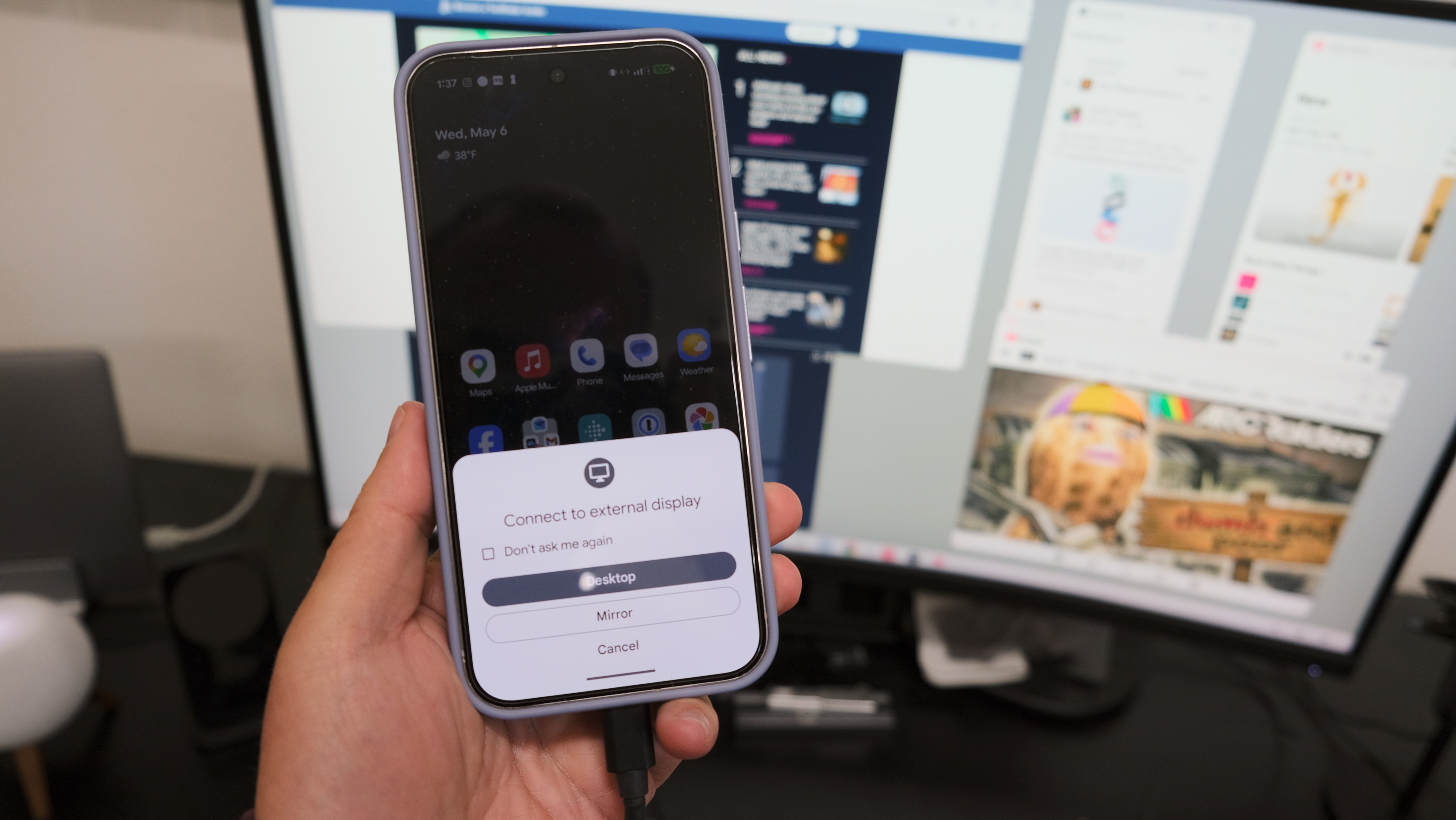
To use the new desktop mode, you will need additional hardware. Of course, you’ll need a compatible Pixel phone, meaning the Pixel 8 or later, including foldables. Additionally, you’ll need some type of display, whether it’s a TV in a hotel room, a portable USB-C display, or a computer monitor. A keyboard and mouse are also required, and so is a way to connect them all to your phone.
If you have a Bluetooth keyboard and mouse, you can pair them with your phone like you would with any other Bluetooth device.
Connecting your phone to a display is done through its USB-C port. If you have a display with a USB-C connection, then you’re good to go. However, if you only have an HDMI cable for your monitor, you’ll need an inexpensive USB-C hub. The USB-C hub also lets you connect a wired keyboard and mouse, power for your phone, and, if desired, an Ethernet connection.
Don’t leave your laptop at home yet
However, the Pixel’s desktop feature isn’t perfect. For example, it’s annoying to not be able to lock my Pixel while using Desktop mode: the screen has to stay on, which in turn produces heat and potentially drains the battery faster.
That said, I’ve spent a lot of time using the new desktop mode to respond to emails sitting in my inbox, reply to text messages, stream music (albeit through the phone’s speaker), and even watch some YouTube shorts.
And my favorite part? At the end of any work session, I unplug my phone and everything I was doing on a 32-inch screen in front of me is now in the palm of my hand. I don’t have to manage multiple devices, wonder where I save a file, or wait for things to sync.
One day, a mobile phone that becomes a full desktop experience or laptop replacement will be the norm, but until then, I’ll keep experimenting and have the confidence of knowing that my phone can replace a laptop when needed.
Follow TechRadar on Google News and add us as a preferred source to receive news, reviews and opinions from our experts in your feeds.